
Community library
Community is where people using Chartnaut share what they build: indicators, definitions and apps. You can add anything published there to your own library, copy it to make it yours, and publish your own work for others.
To open it, go to Tools → Apps, Tools → Definitions or Tools → Indicators and click the Community tab at the top of the list. Each one opens Community on its own kind.
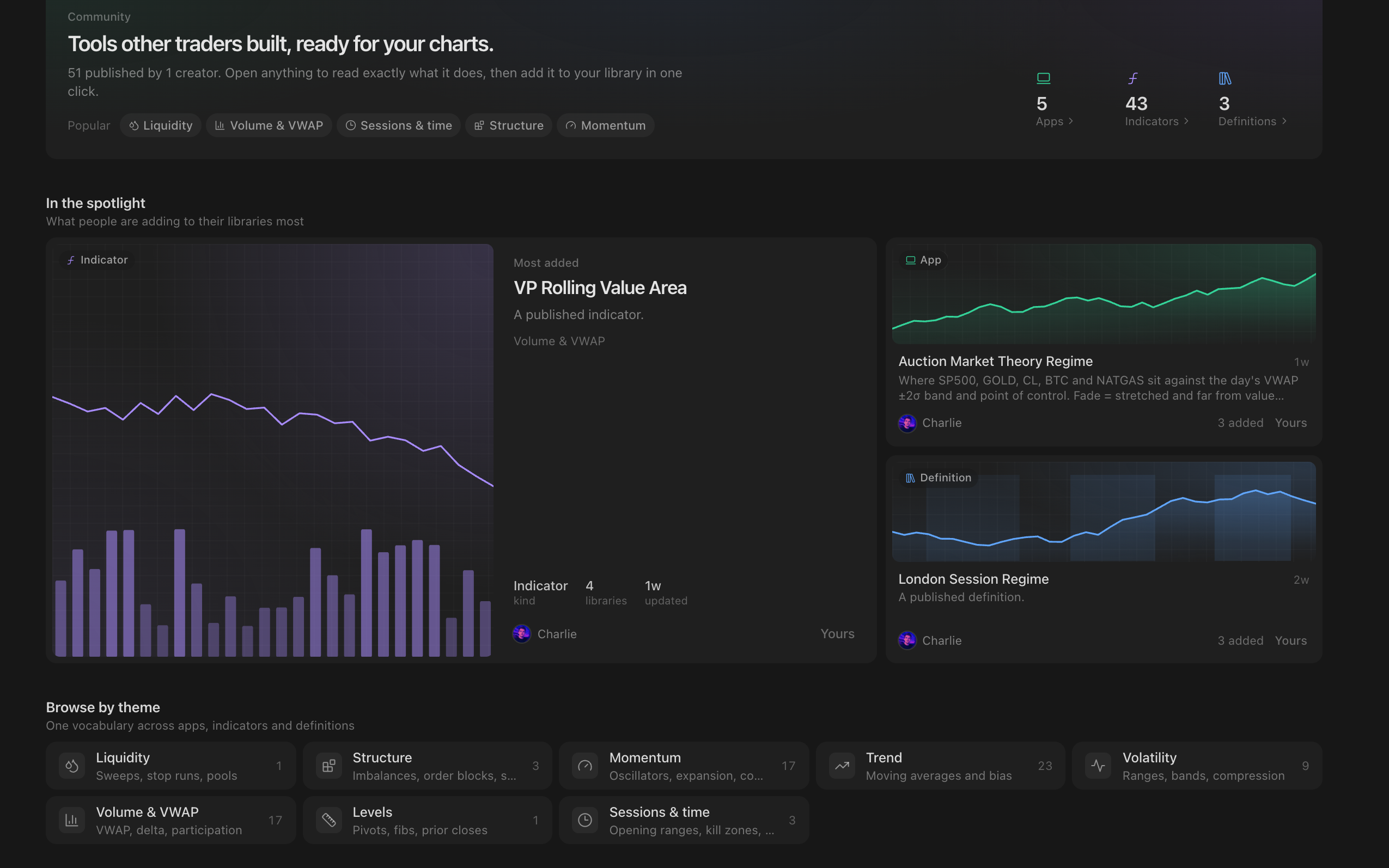
Discover
The first tab, Discover, is the front page. It is laid out in sections:
Featured today: picked by hand, and changes daily.
Recently updated: the newest work across apps, definitions and indicators.
Browse by theme: themes such as Liquidity, Structure, Volume & VWAP, Sessions & time and Risk & review. A theme gathers all three kinds, so Liquidity brings back sweep definitions, liquidity indicators and apps about stop runs together.
Apps, Definitions and Indicators: the latest of each kind, with a link to see them all.
People publishing: authors ranked by how much of their work they have shared. Click one to see everything they have published.
Searching and browsing
The other tabs list one kind each: Apps, Definitions and Indicators, with Everything for all three in one list. Narrow any of them to a theme, search with Search everything published…, and sort by Best match, Most installed, Recently updated, Newest or Name.
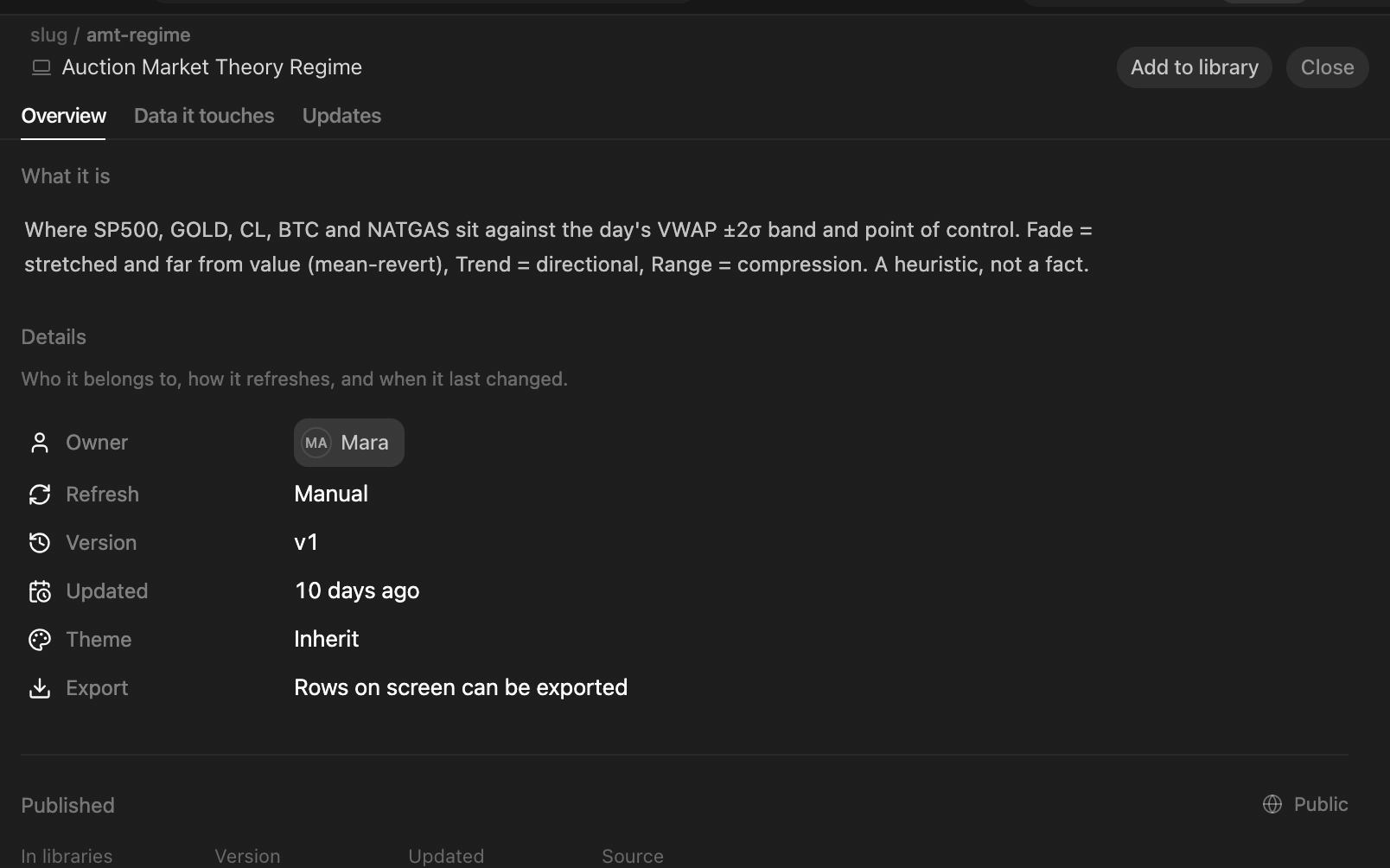
Click anything to open it. You see the same detail its author sees, without the author's controls: the description, what a definition marks, the inputs an indicator takes, its versions, and for an app, the data it reads.
Adding to your library
Open the item in Community.
Click Add to library.
If it depends on other pieces, such as an app that uses someone's indicator, a dialog lists them first. Pieces under Added to your library come with it. Anything already built into an app shows under Already inside this canvas, and anything the author has not shared shows under We can’t add these.
Once it is added, the button reads Open, and the item sits in your own library beside your own work. Remove from library takes it out again.
Cloning
An item you added is the author's. To change it, clone it: Clone makes your own editable copy, which you can open in its builder and change as you like. Indicators and definitions show Clone on their detail when the author allows copies. Apps have Clone in their row's menu in Tools → Apps.
Views from Community
Views are apps made for one kind of page, and they are shared the same way. On a trade, journal day or instrument, click + View; on a session, account or playbook, click Create custom report under Reports. Then Explore community views lists the public views that fit that page and previews each one on it before you add it. See Community views.
Publishing your own
Each indicator, definition and app you own has a visibility setting, shown by an icon on its row in the library and on its detail. A new app starts Private.
Visibility | Who can see it |
|---|---|
Private | Only you |
Unlisted | Anyone with the link. Use Copy link to share it |
Public | Everyone, listed in Community |
Open the library the item is in.
Click its visibility setting.
Choose Public.
It appears in Community for others to find and add.
For an app, Publish in the app builder and visibility are two separate steps. Publish stores a new version of the app. Visibility decides who can open it. Build an app covers the builder.
From the CLI or API
The same library is searchable outside the app. chartnaut library search finds your own scripts, Chartnaut's built-ins and the community's public indicators and definitions, and chartnaut library show describes one: its settings, outputs and events, never its code. Search the library covers the API call.
Another author's indicator or definition runs from the CLI, the API or an AI app only once it is in your library, the same rule as in the app. chartnaut library add bob/vwap-bands adds it: like the dialog, it lists the scripts it needs and asks before adding them, and chartnaut library remove takes it out again. From the API it is Add to your library, and an AI app connected over MCP shows you the list and asks before it adds anything.