
Create a playbook
A new playbook needs a name, a colour and three R-level targets. Everything else, from the entry rule to the tags, you add afterwards. You can make as many as you like on every plan.
Create it
Open Trading → Playbooks.
Click New playbook. The wizard opens on its first step, Overview, with a short video on how playbooks work.
Click Continue to Setup.
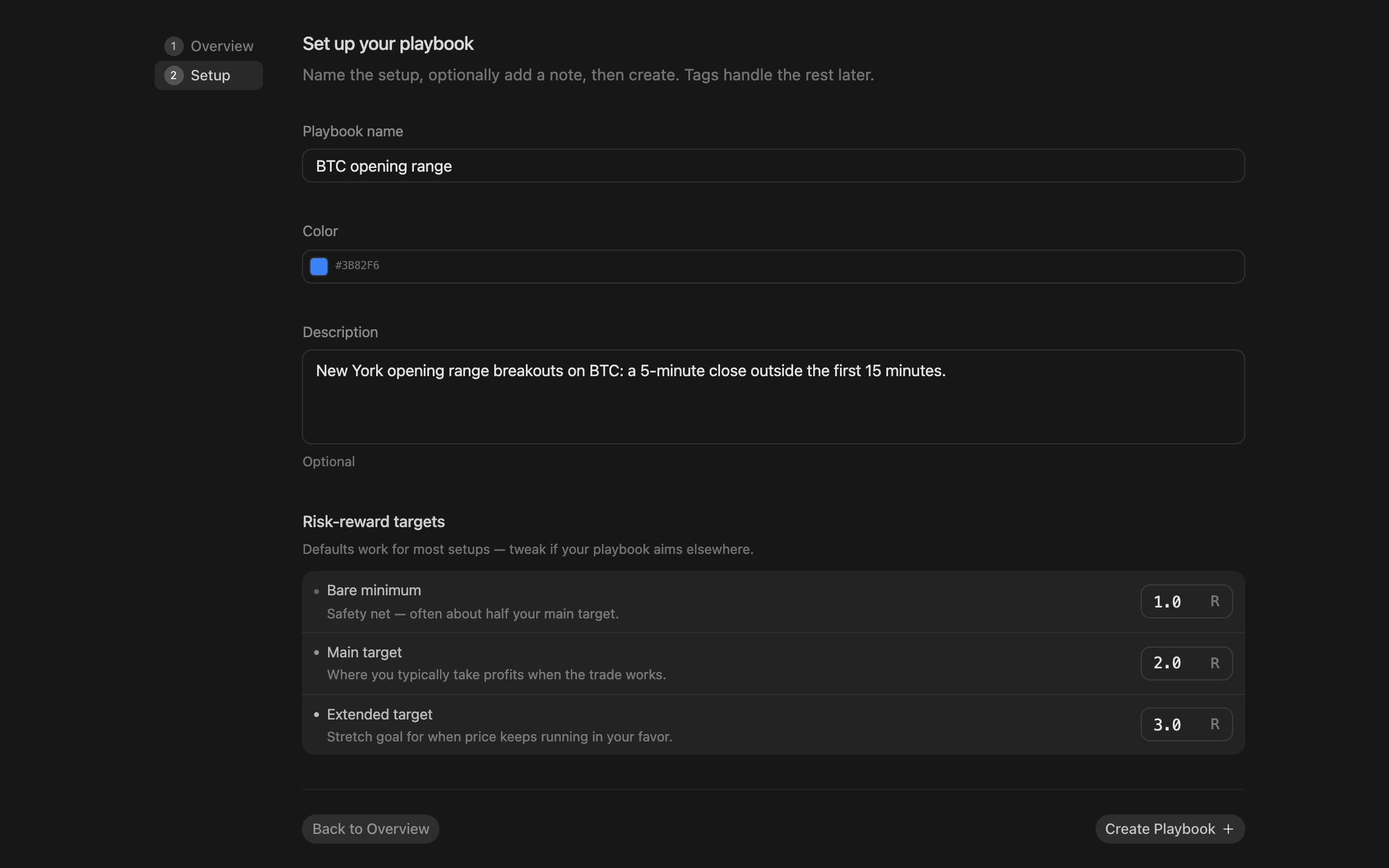
Type a Playbook name, such as
BTC opening range. Name it after the setup, so the name still fits when you trade it on ETH.Pick a Color. Trades filed into the playbook carry this colour, on the chart and in Trades.
Add a Description if you want one. It is optional.
Set the three Risk-reward targets, or leave the defaults.
Click Create Playbook.
Chartnaut opens the playbook on its Trade Book tab. It is empty until you add an instrument or file a trade.
Choosing the R-levels
R is what you risked on the trade. The three targets are measured in multiples of it:
Target | Default | What it is for |
|---|---|---|
Bare minimum | 1.0R | A safety net, often about half your main target |
Main target | 2.0R | Where you usually take profit when the trade works |
Extended target | 3.0R | Where a runner goes when price keeps running |
Each target has to be a number above 0. Set them to the levels you actually trade: if you always take profit at 1.5R, make Main target 1.5. The reports measure trades against these targets, and Historical Intelligence gives the odds of reaching each one.
To change them later, open the Historical Intelligence tab, edit the targets and click Save. If a model is already trained, Chartnaut asks Save R-level targets? first: new targets switch the model off until you train it again. Click Save targets to go ahead.
Write down the entry rule
The entry rule tells you, and anyone you share with, which trades belong in the playbook.
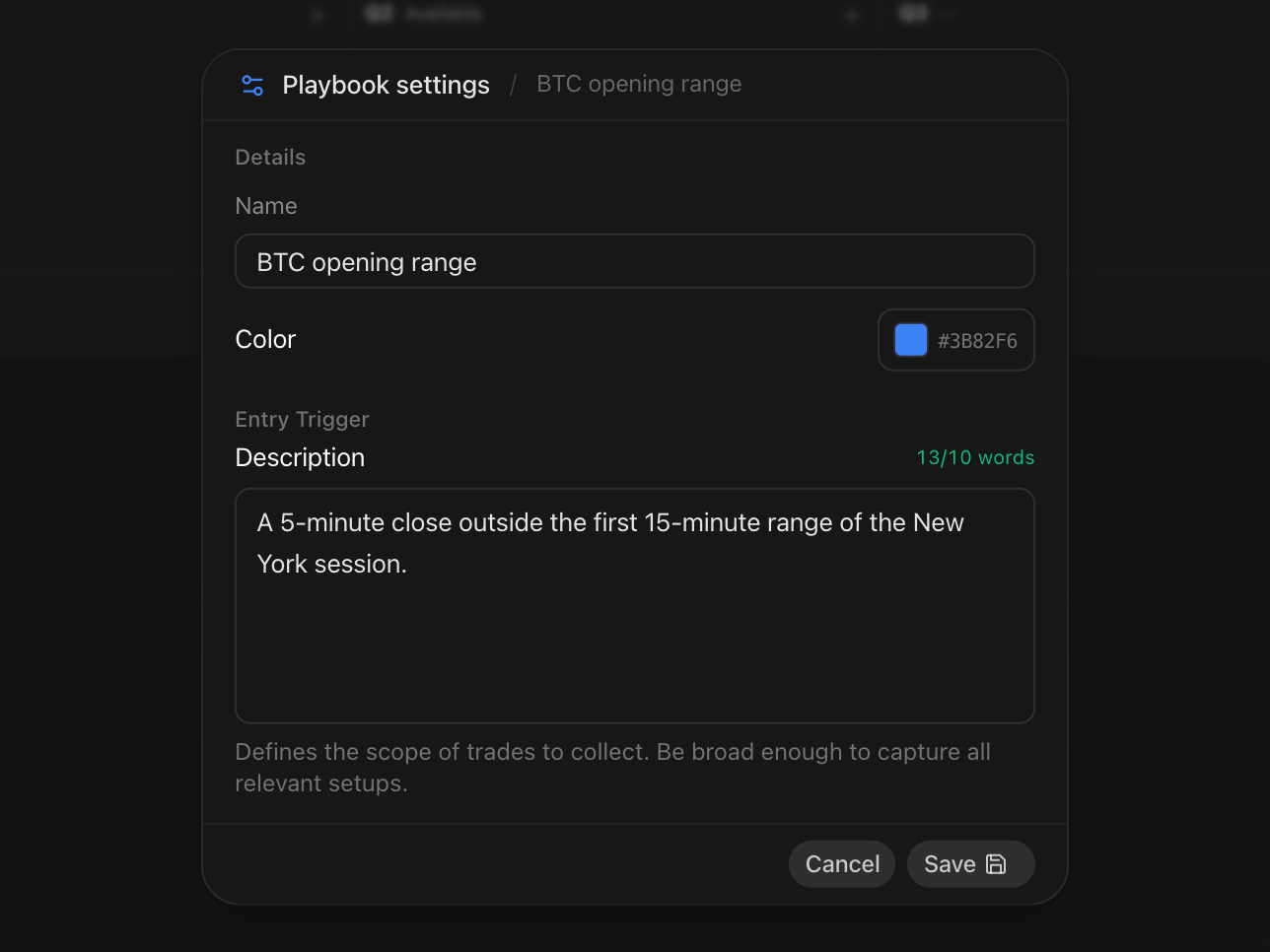
Open the playbook and click the settings button beside its name. Playbook settings opens.
Under Entry Trigger, describe what puts you in the trade. It needs at least 10 words, and a counter shows how many you have.
Click Save.
Playbook settings is also where you rename the playbook or change its colour.
Create one from the chart
When you place a trade in Charts, the Log this trade? list ends with New Playbook (or Create Your First Playbook when you have none). It creates the playbook without leaving the chart, so you can file the trade into it straight away.
Delete a playbook
Click the trash button in the playbook's header and confirm with Delete Playbook. This removes its tags, its trading data, its Historical Intelligence models and the sessions linked to it, and cannot be undone.
When it goes wrong
If Create Playbook stays greyed out, the name is empty or one of the targets is not a number above 0.
Next, add the tags you check on every trade: Tags and criteria. To build a whole playbook from start to finish, follow Turn your trades into a playbook.