
Symbol mapping
Your broker names its symbols its own way. It might trade BTCUSD, EURUSD.pro or XAUUSD.r where Chartnaut charts BTC, EURUSD and GOLD. Symbol mapping links each broker symbol on a MetaTrader, cTrader or TradeLocker account to the Chartnaut instrument it matches, once. That link is how an order from the chart reaches the right symbol at your broker, and how every fill lands on the right chart, in the right trade and in the right reports.
 MetaTrader
 cTrader
 TradeLocker
Chartnaut Demo accounts trade Chartnaut's instruments directly and need no mapping.
 Chartnaut Demo
Chartnaut never guesses a link. Every one is a choice you make, so a wrong match cannot slip into your stats unnoticed.
During a history import
The first history import lists every symbol you traded in the lookback. The account shows Needs mapping on the Accounts page until you link them.
Open Trading → Accounts and click the account.
Under Map broker symbols, find the first row. It shows the broker symbol, how many closed deals it has, and open now if you hold a position on it.
Click Choose instrument and pick the matching Chartnaut instrument. Type to search.
For a symbol you do not want imported, click the circle at the end of its row to skip it.
Repeat until the counter under the list reads every symbol resolved.
Click Continue import.
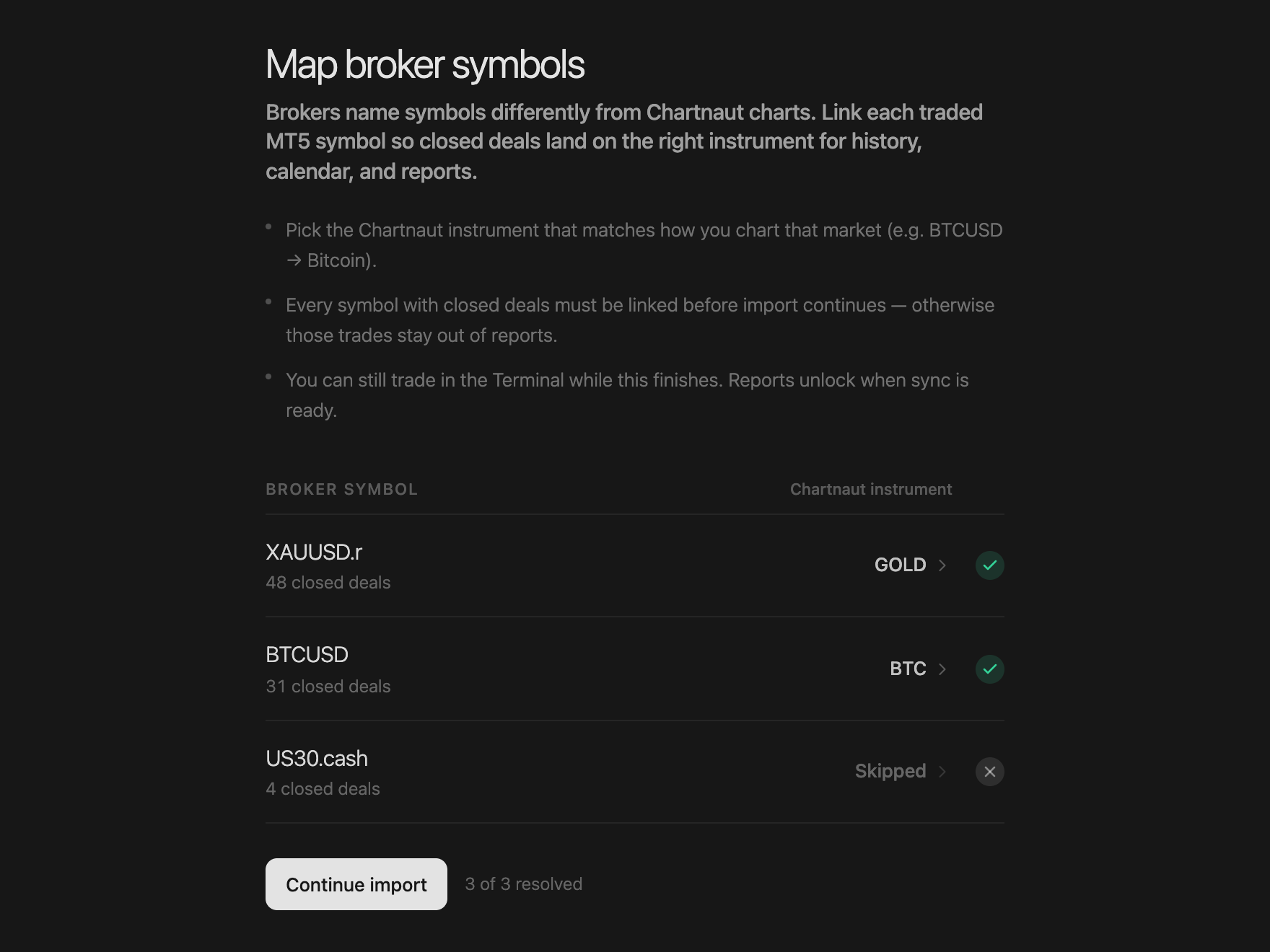
Trades on a skipped symbol stay out of Chartnaut. If a skipped symbol has an open position, Chartnaut warns you that it will not track that position while it is open. You can import it as a closed trade after it closes, with a re-sync.
From the trade bar in Charts
The first time you trade a broker symbol that is not linked yet, the trade bar shows Map symbol to continue and you cannot set entry, stop loss or take profit until it is.
Click Map symbol.
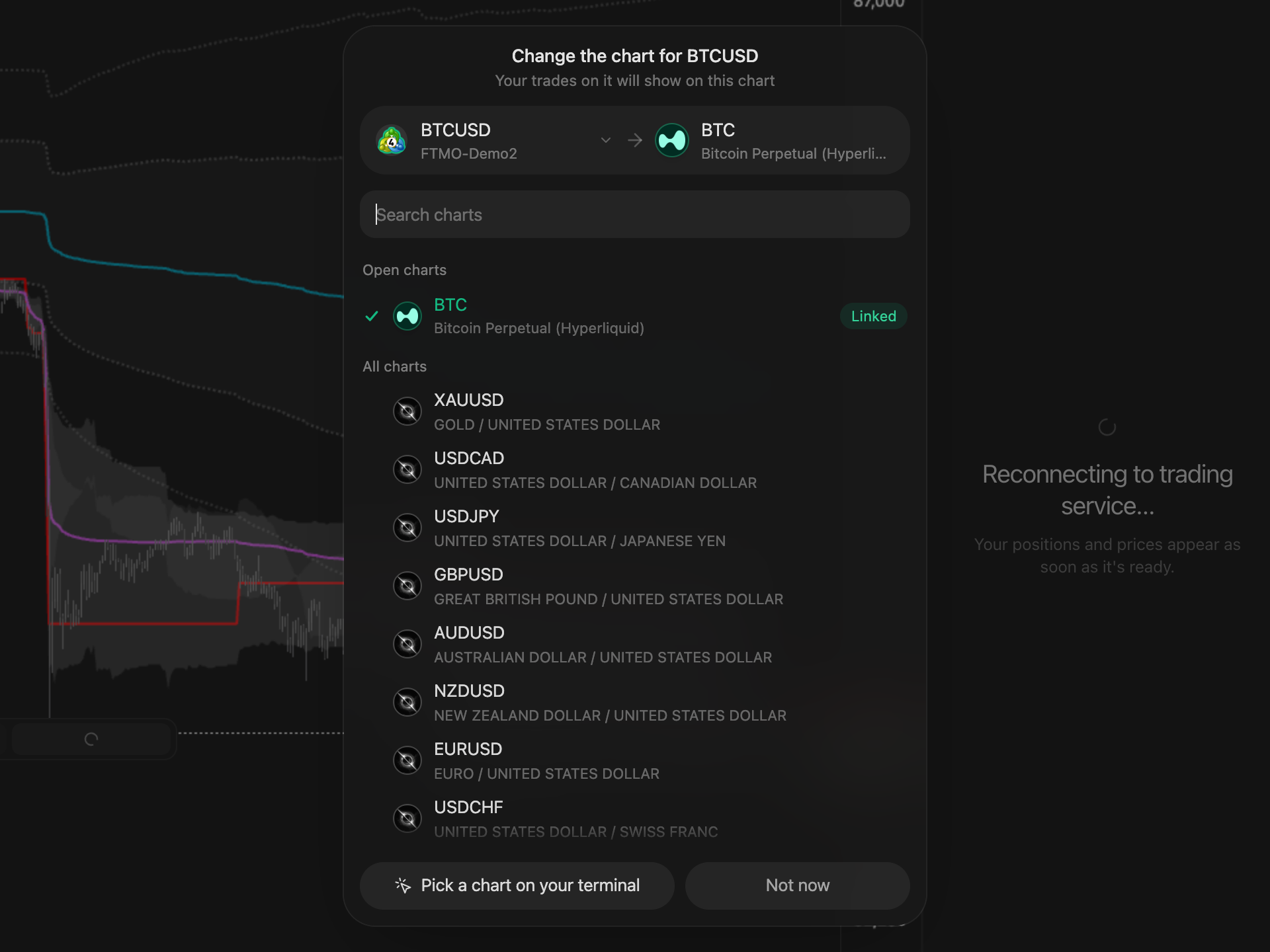
In the Link symbol dialog, pick the instrument. Instruments with a chart open are listed first, under Open charts, then All assets.
Click Link symbol to confirm.
Instead of searching, the button under the list lets you click one of the charts on screen. Not now closes the dialog without linking.
Change a link
On a chart traded through a MetaTrader, cTrader or TradeLocker account, the broker symbol is shown beside the chart's instrument, or Map if it has none. Click it to open Change symbol link, which shows the current link under Currently mapped, and pick a different instrument.
Fix an unmapped trade
A trade on a symbol that was never linked carries an Unmapped badge in Trades. Its P&L still counts in your stats, but it has no P&L path and no per-instrument breakdown until it has an instrument.
Open the trade.
In the notice above its tabs, click Map followed by the symbol, for example Map XAUUSD.r.
Pick the instrument.
The link applies to the whole account, so every unmapped trade on that symbol is updated at once. To find them, turn on the Unmapped only filter in Trades or on the account's own pages.