
Use your own AI subscription
If you already pay for Claude or ChatGPT, Chartnaut Desktop can run its AI on that subscription instead of AI credits. The agent, the builders' chats and every other chat work the same; the requests count against your subscription's own limits, and no credits are spent.
This works only in Chartnaut Desktop, because your provider sign-in stays on your own computer, where a browser cannot reach it. In the browser, the page explains this and offers nothing to connect.
To work the other way round, from inside claude.ai or ChatGPT, connect them to Chartnaut over MCP.
Connect a subscription
In Chartnaut Desktop, open Settings → AI providers in the sidebar.
Beside Claude or Codex, click Connect. Codex is how a ChatGPT subscription connects.
The first time, a dialog explains the arrangement before anything starts, including that providers intend subscriptions for their own apps and that any enforcement falls on your provider account. Confirm it to go on.
Sign in with the provider in the browser window that opens. The button reads Waiting for browser… until you finish.
 Codex
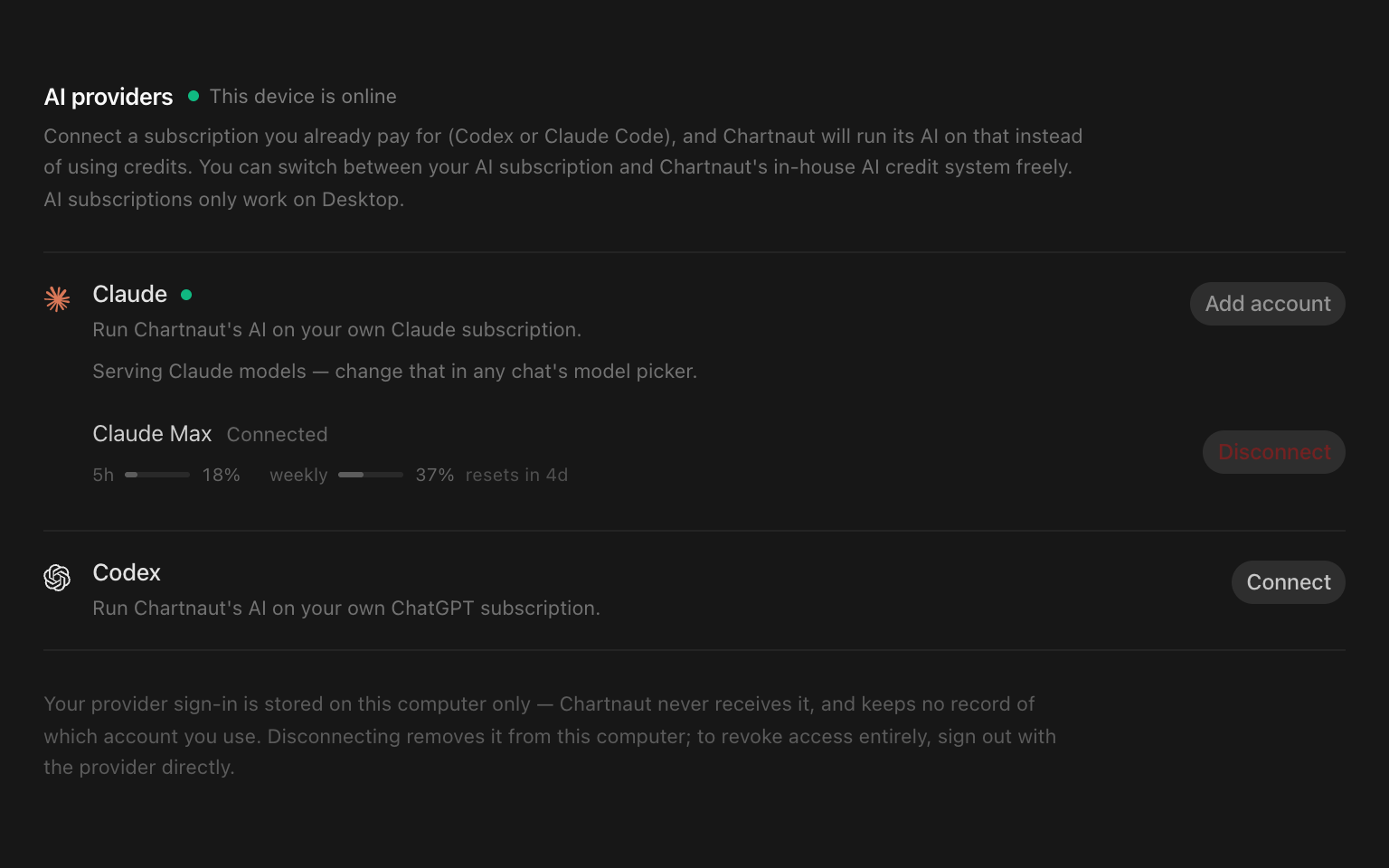
When it is done, the row shows your account as Connected, and Chartnaut switches that subscription on for its models.
Choose which models use it
The switch lives in the model picker in any chat box, not on the settings page. The picker has a column per provider, and the Anthropic and OpenAI columns each carry a switch beside the name.
Switched on, the column reads On your Claude subscription (or ChatGPT), and each model it serves shows On your subscription · no credits. A model it cannot serve shows Not served by your subscription.
Switched off, the column reads Uses Chartnaut credits.
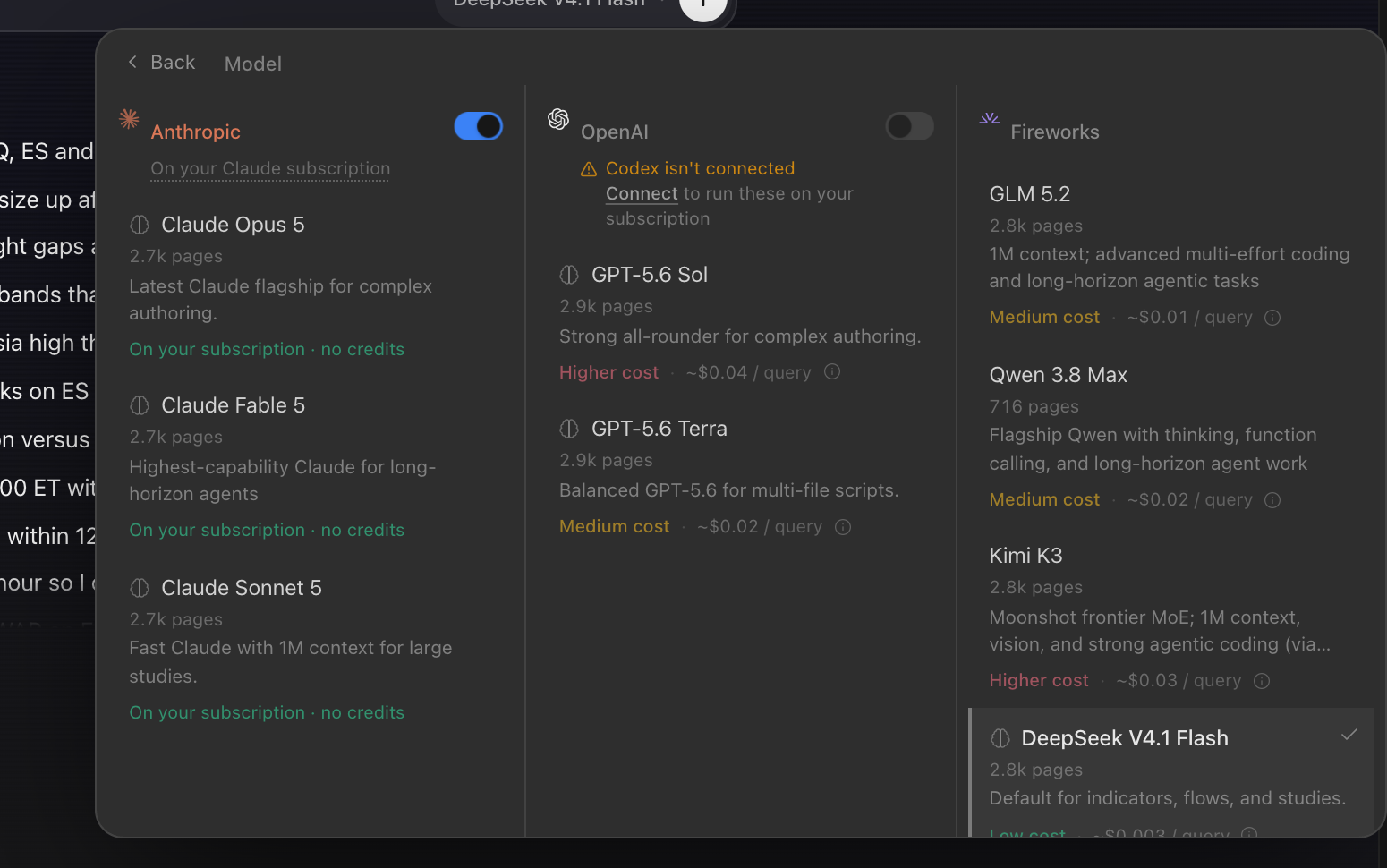
Each provider is set separately, so you can run Claude models on your subscription and other models on credits.
Watching your allowance
Under each connected account on AI providers, two meters show how much of your 5h and weekly allowance you have used, with when the weekly one resets. They appear once you have sent a message on the subscription. AI usage on the Subscription page counts messages that ran on your subscription under On your subscription.
More than one account
Add account connects a second account for the same provider. Use this switches which one serves, and Disconnect removes one from this computer. To revoke access completely, sign out with the provider as well.
What stays where
Your provider sign-in is stored on this computer only. Chartnaut never receives it and keeps no record of which account you use. Your conversations still go through Chartnaut, which is how chats are saved and how the AI reaches your charts and studies.
When it goes wrong
Chartnaut Desktop isn't running or Claude isn't connected in the model picker: open Desktop, or click Connect there to go to AI providers.
With Desktop closed, models switched to your subscription stop working. They do not fall back to credits; switch the column off to use credits.
The account says it is signed out: click Disconnect on it, then Connect and sign in again.
Rate limited by the provider: you have hit your subscription's limit. Wait for it to reset, or switch the column off to carry on with credits.