
Connect a broker and place your first trade
By the end of this tutorial you will have an account connected to Chartnaut, a trade placed from the chart, and that trade recorded in Trades and your Journal.
Accounts is on every plan. How accounts work explains the two kinds of account and what your plan allows.
Pick an account to connect
Platform | You sign in with | What you get | Live slot |
|---|---|---|---|
MetaTrader 4 or MetaTrader 5 | The login, password and server from your MetaTrader terminal | One account per login. Orders are real and fill at your broker | Yes |
cTrader | Your cTrader ID, on cTrader's own page. Chartnaut never sees your password | Every account behind that ID, live and demo. You pick which to trade | Yes, per linked account |
TradeLocker | The email, password and server you use in TradeLocker | Every account on that login, demo and live. You pick which to trade | Yes, per linked account |
Chartnaut Demo | Nothing to sign in to | Virtual money against live prices, filled on Chartnaut's servers | No |
 MetaTrader 4
 MetaTrader 5
 cTrader
 TradeLocker
 Chartnaut Demo
Pro has 6 live slots, up to 1 of them on MT4 or MT5. On Free, the 14-day live trial connects 1 cTrader or TradeLocker account. Chartnaut Demo is free on every plan, so start there if you want to practise.
Follow the section for the one you chose, then carry on at Place a trade from the chart.
Connect MetaTrader
Open Trading → Accounts.
Click Connect account.
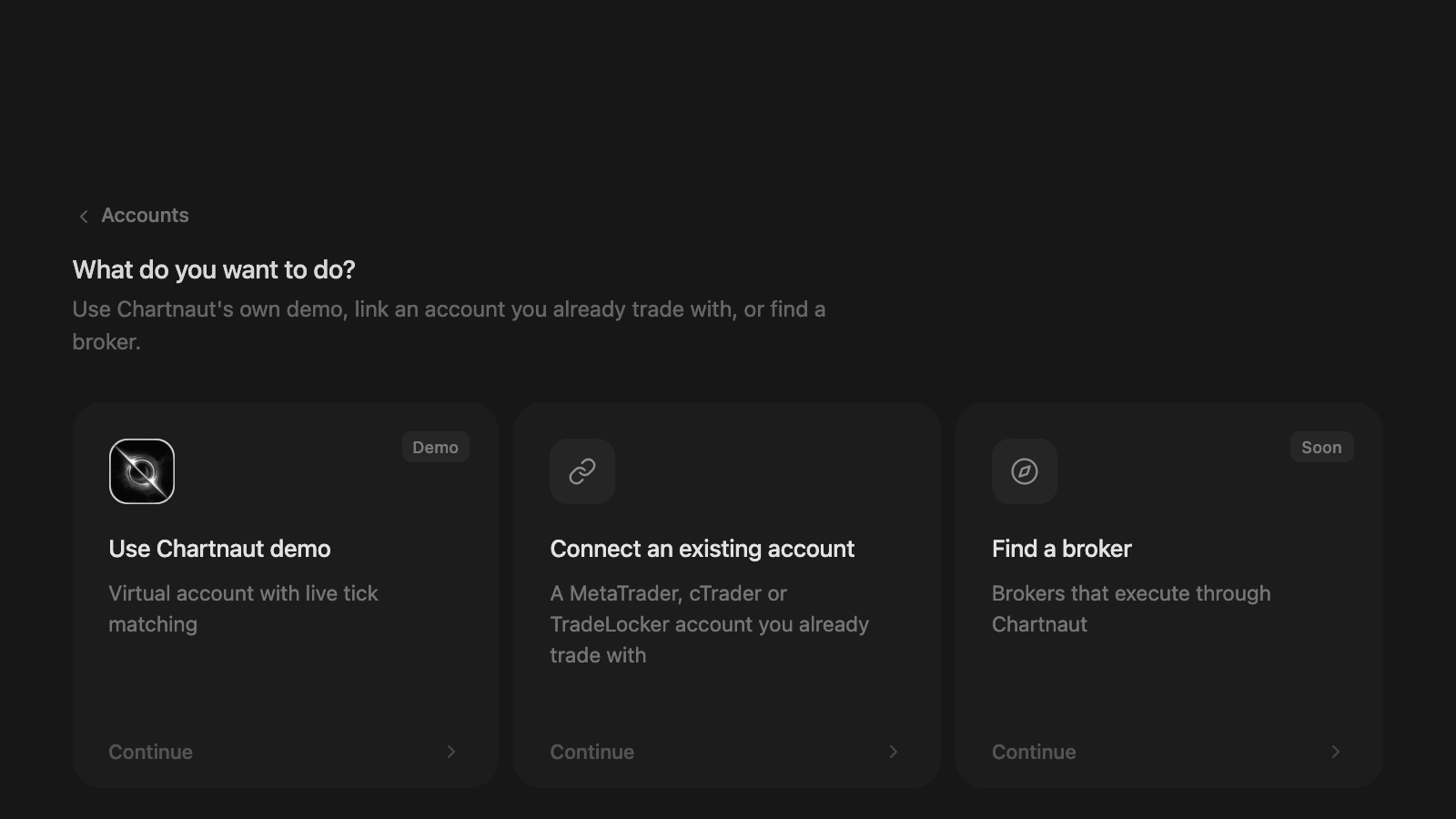
On What do you want to do?, choose Connect an existing account.
On Which platform?, choose MetaTrader 4 or MetaTrader 5.
Type a Label, then your Login, Password and Server, exactly as they appear in your MetaTrader terminal.
Leave Sync past trades into Chartnaut ticked to bring in your closed trades, and pick a Lookback: 90 days, 1 year, 3 years or All.
Click Connect.
Wait while Chartnaut provisions the account. This can take a few minutes, so keep the page open.
When Account connected appears, click Continue.
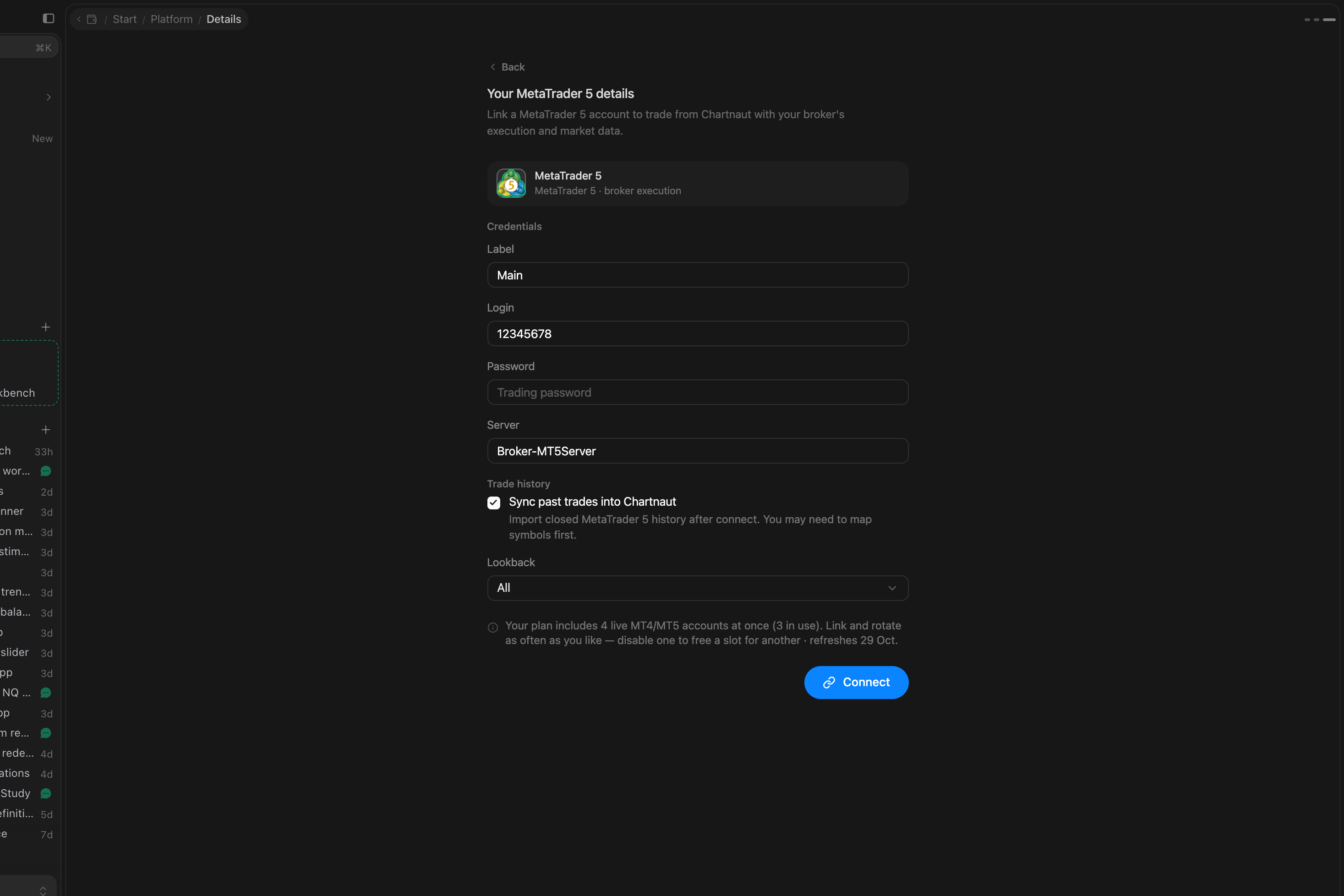
Chartnaut never stores or shows your password. Connect MetaTrader goes further.
Connect cTrader
Open Trading → Accounts.
Click Connect account.
On What do you want to do?, choose Connect an existing account.
On Which platform?, choose cTrader.
Click Connect with cTrader, then sign in with your cTrader ID and grant access.
Tick the accounts you want to trade under Live or Demo, and adjust their labels.
Leave Sync past trades into Chartnaut ticked to bring in your closed trades, and pick a Lookback.
Click Link account.
Chartnaut never sees your cTrader password. Connect cTrader goes further.
Connect TradeLocker
Open Trading → Accounts.
Click Connect account.
On What do you want to do?, choose Connect an existing account.
On Which platform?, choose TradeLocker.
Enter your Email, Password and Server, for example ATLAS or HEROFX.
Click Log in to TradeLocker. Chartnaut looks on both Demo and Live, so you don't need to know which yours is on.
Tick the accounts you want to trade, and adjust their labels.
Leave Sync past trades into Chartnaut ticked to bring in your closed trades, and pick a Lookback.
Click Link account.
Chartnaut keeps your TradeLocker login encrypted and never shows your password. Connect TradeLocker goes further, including prop-firm accounts.
Connect Chartnaut Demo
Open Trading → Accounts.
Click Connect account.
On What do you want to do?, choose Use Chartnaut demo.
Type a Label, for example "Practice".
Set Leverage and Starting balance. The balance starts at 100,000, in USD.
Click Connect.
When Account connected appears, click Continue.
You are back on Accounts, and the new account has a green dot. Connect Chartnaut Demo covers the options in more detail.
Map your symbols
This applies to MetaTrader, cTrader and TradeLocker. Your broker names its symbols its own way, such as BTCUSD where Chartnaut has Bitcoin. If the import finds symbols it cannot match, the account shows Needs mapping on the Accounts page.
Click the account.
Under Map broker symbols, click Choose instrument beside each broker symbol and pick the matching Chartnaut instrument.
For a symbol you do not want imported, click the circle at the end of its row to skip it.
When every symbol is mapped or skipped, click Continue import.
Check the summary of what will come in, then click Import and adopt.
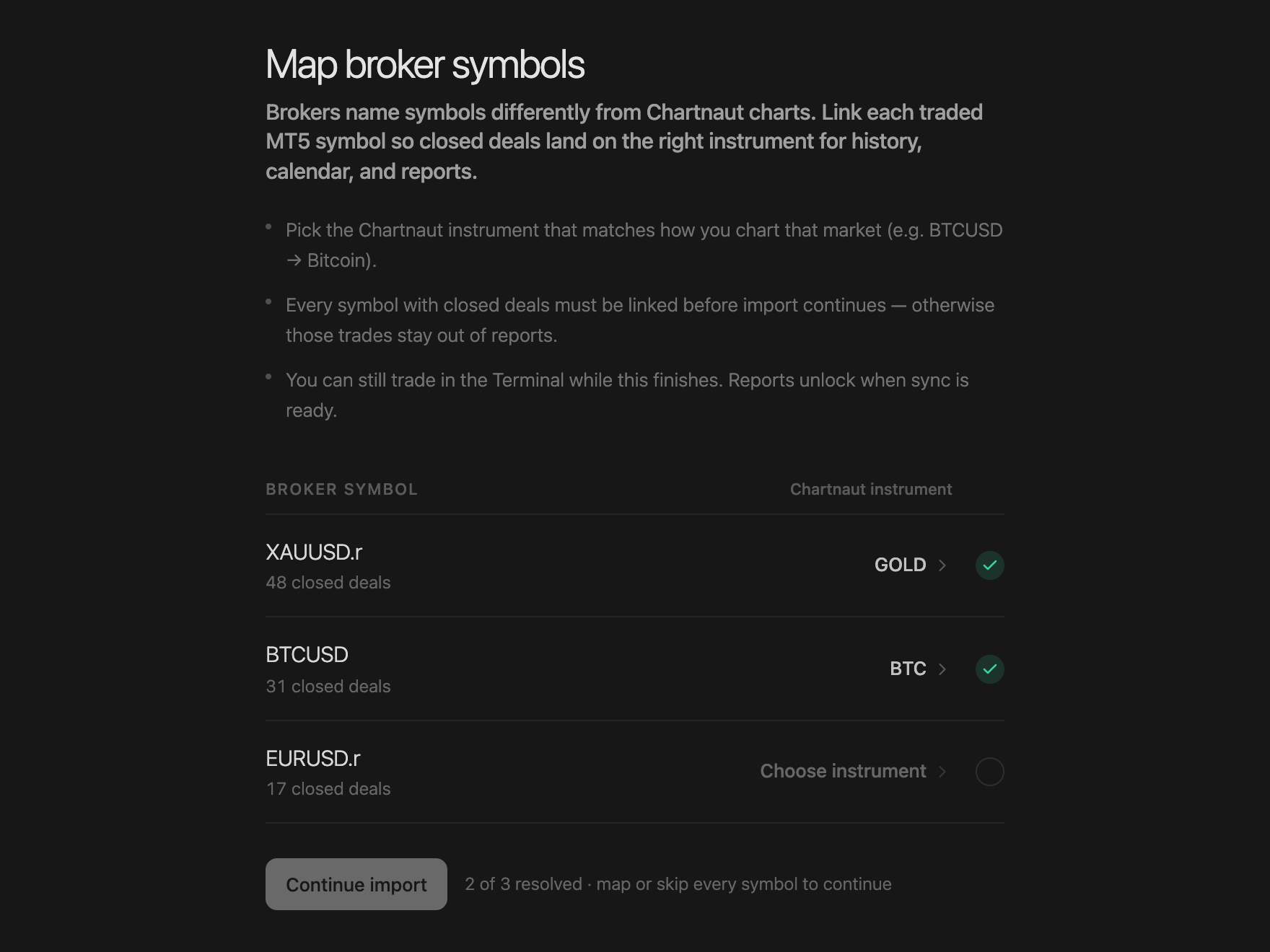
Closed trades land in your trade library and reports. Open positions are adopted, so you can manage them from the chart like any other trade. Symbol mapping and History import go further.
Place a trade from the chart
Open Trading → Charts.
Hover Select Account in the top toolbar and choose your account under Accounts.
Open a chart of the market you want to trade. Set up Charts for how you trade shows how.
If the trade bar is hidden, click the trade bar icon at the right of the top toolbar. Its tooltip reads Show trade bar.
Check the symbol in the trade bar and set the size.
Click Buy or Sell.
Under Log this trade?, choose a playbook to file the trade in, or click Skip Playbook Selection.
With MetaTrader, cTrader or TradeLocker, the trade bar lists your broker's symbols. If the one you pick is not linked to a Chartnaut instrument yet, the bar shows Map symbol to continue. Click Map symbol and choose the matching instrument before you trade.
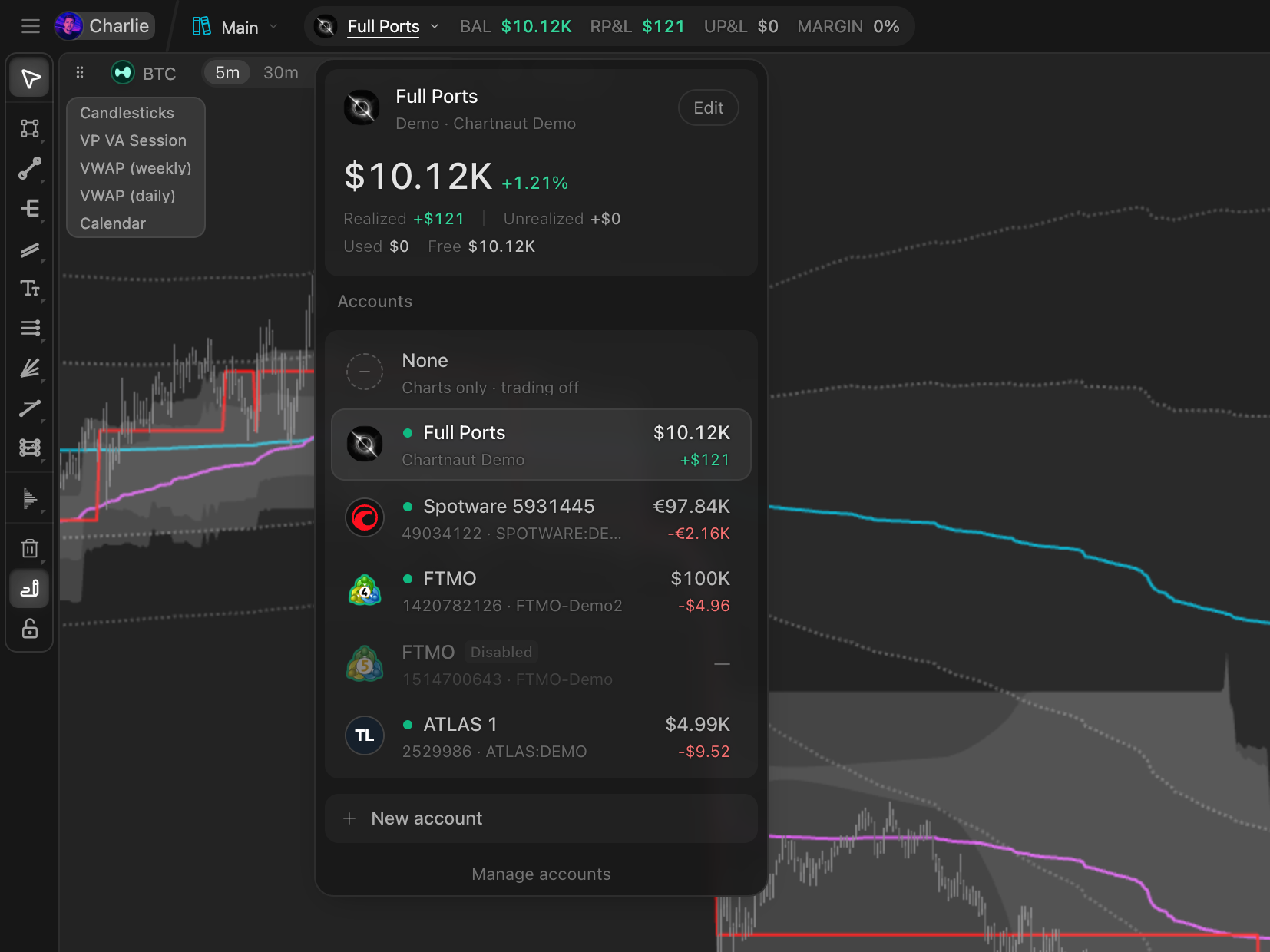
The trade appears on the chart as a draft entry line at the current price. Nothing has been sent yet.
Send the order
To add a stop loss or take profit, drag the arrows handle on the entry label up or down. Dragging towards profit gives you a take profit, away from it a stop loss.
Click the tick on the entry label.
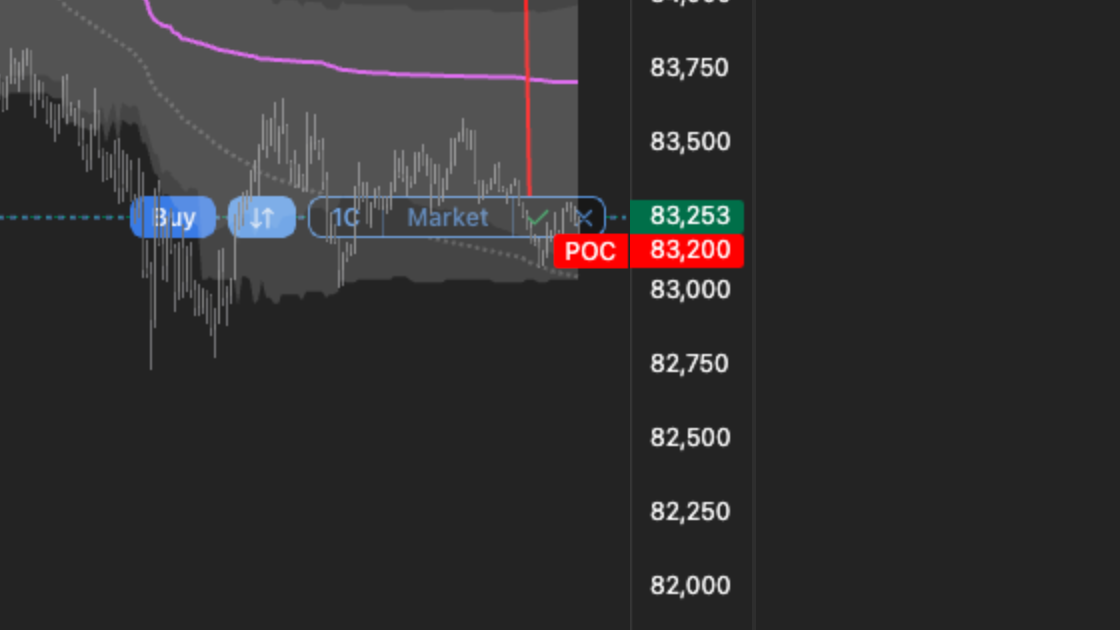
The line reads Filling... until the order fills, then turns into your open position. To close it, hover the position's label and choose Close Position, or Close Partial to close part of it. Trading from the chart goes further, including the Position Manager panel.
Find the trade in Trades and the Journal
Open Trading → Trades and find your trade in the list. It shows Open until you close it, then its result.
Click the trade to see its details and the snapshots Chartnaut took of your chart.
Once the trade is closed, open Trading → Journal and pick the day you closed it. The trade is listed under Trades for that day, ready for your notes.
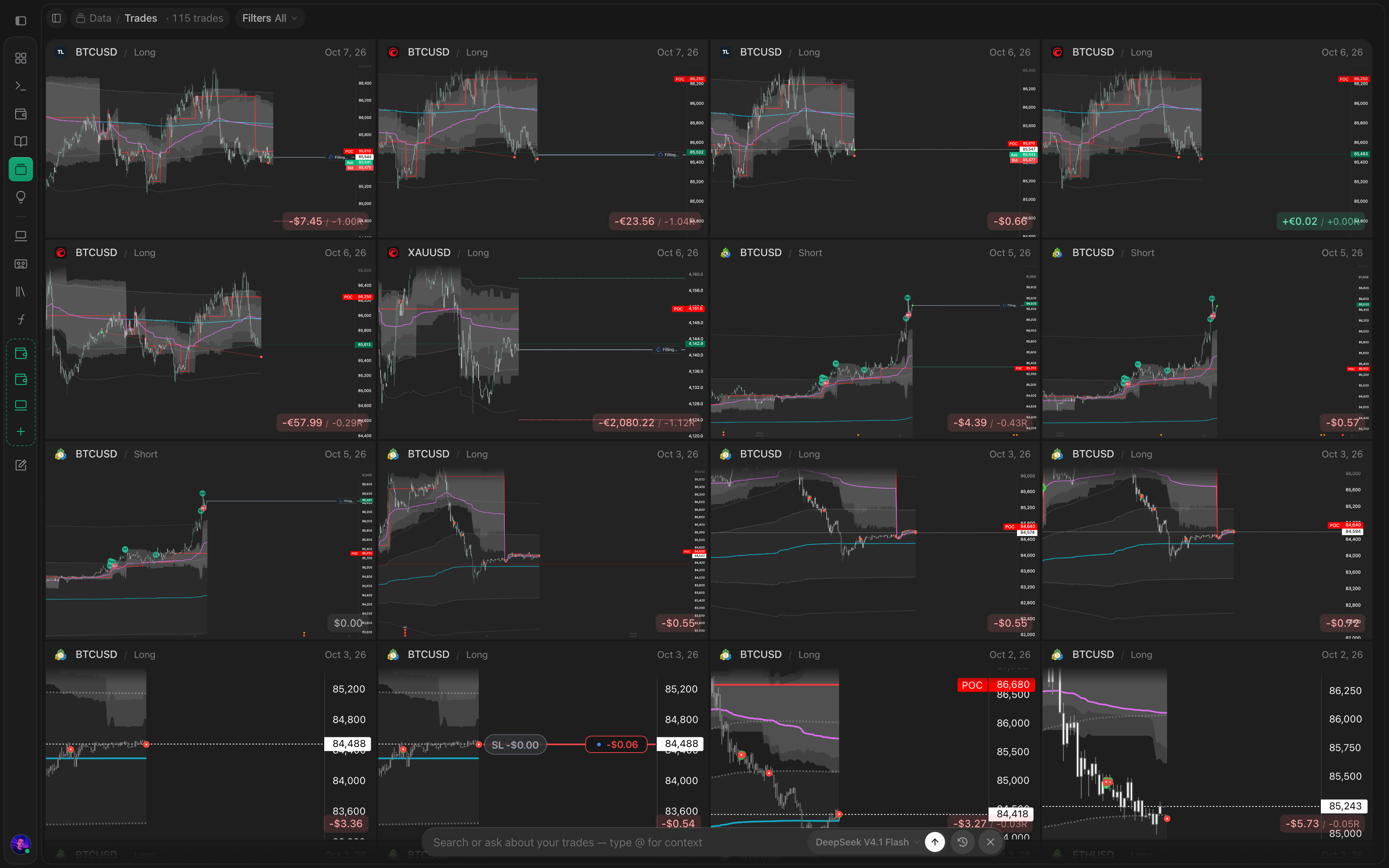
Every trade you place from Charts is recorded the same way. How your trades are recorded explains what is saved and when.